Your library stays with you.
Sound banks are stored locally on your Mac. No cloud. No account. No subscription.
Stored locally For macOS
NEW Laser Mammoth for macOS
Your favorite sound programs are spread all over different banks?
All selfmade programs on your synth share the same name like Init2 and Init2#3?
Your synth has panflute sounds. You might not want that.
No cloud. No account. No subscription. All your data stays on your Mac.

Get Laser Mammoth for macOS.
01 / New on your desktop
With the benefits of a dedicated desktop app.
Sound banks are stored locally on your Mac. No cloud. No account. No subscription.
Stored locallyLaunch Laser Mammoth as a standalone app. With a macOS menu bar, a dedicated settings window, and familiar Mac keyboard shortcuts.
Made for your MacExport your local database via “File → Export Database Backup”. Save a copy of your library wherever you choose.
Database backupSetup, simplified
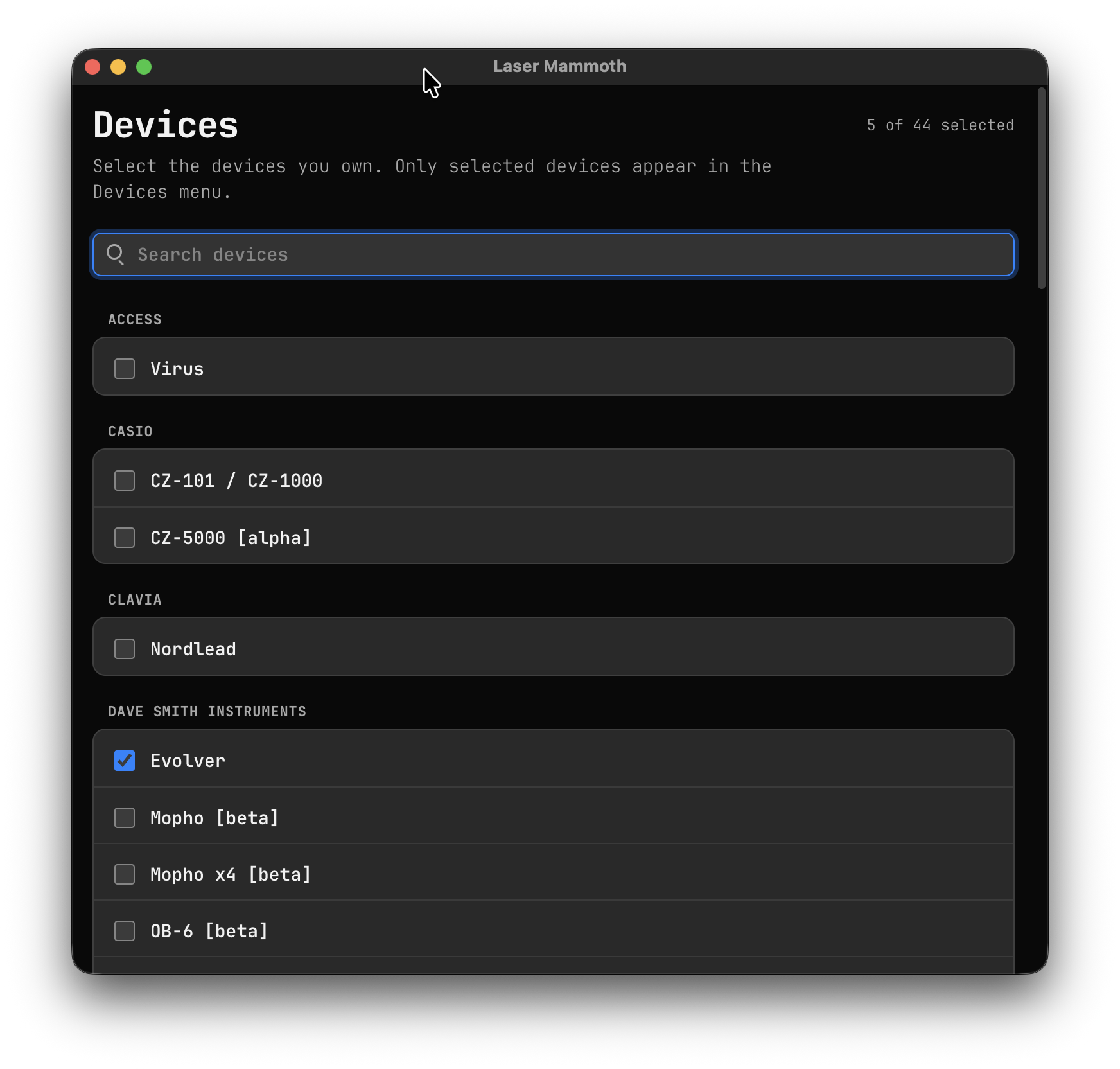
Select the devices you own in Settings. Only your chosen synthesizers will appear in the Devices menu, keeping your setup tidy.
Find your device with the search field and add it to your selection.
⌘, Open Settings. Choose your devices. Get started.
02 / Librarian Girl, you came and you changed my world
Collect sounds, try them out, and put them in the right order.
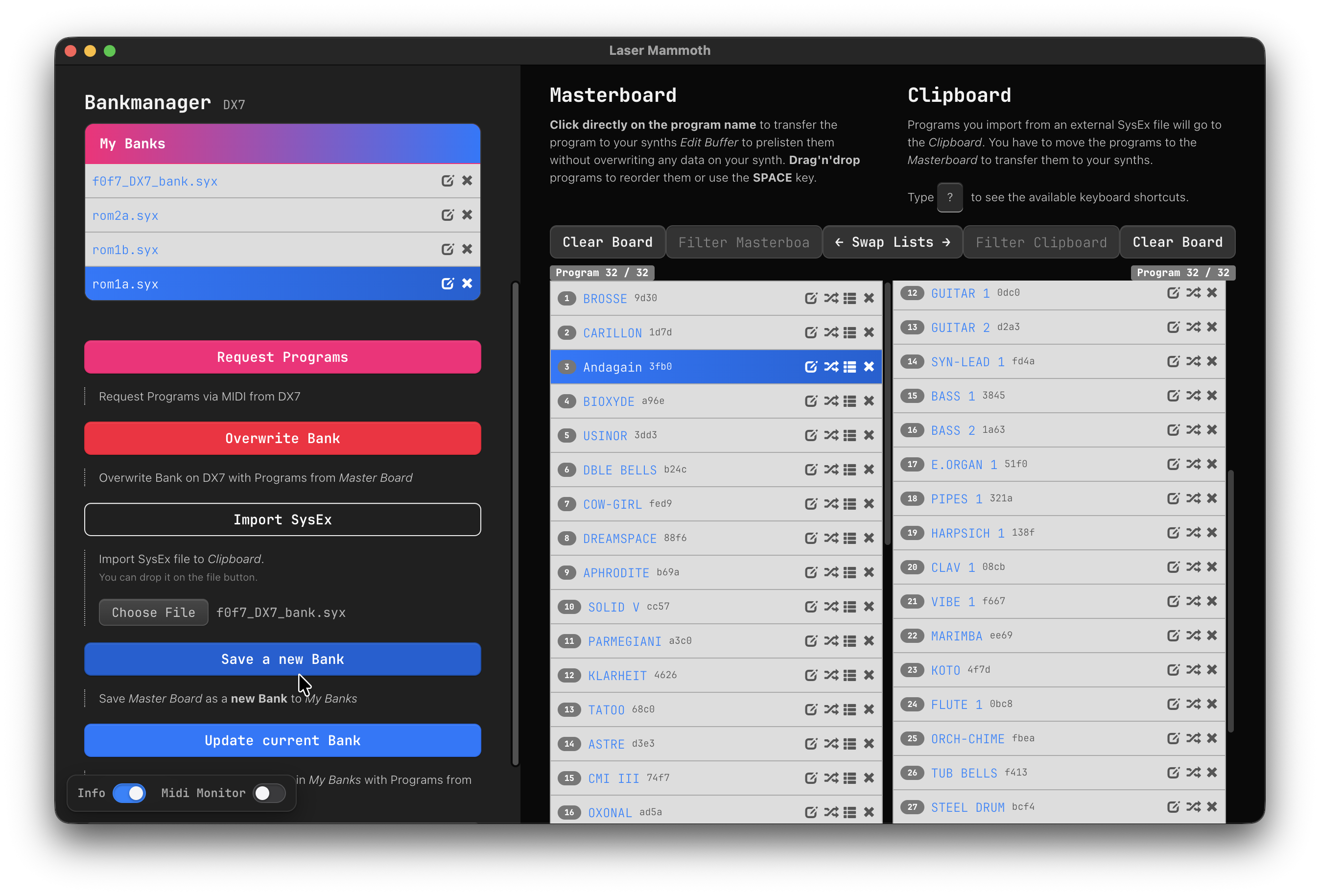
Import a .syx file into the Clipboard or receive programs from your synthesizer via MIDI SysEx. Use a request or a manual bank dump, depending on your device.
Import SysEx / Request ProgramsDrag programs between the Clipboard and Masterboard. Reorder them with drag and drop, filter by name, and rename programs where your device supports it.
Masterboard + ClipboardSave the Masterboard as a local bank, export it as a SysEx file, or send the finished bank back to your synthesizer.
Save / Export / SendOn supported devices, clicking a program name sends the program to the Edit Buffer. Audition it on your synthesizer without overwriting stored programs.
The four-character DNA code is a checksum of the sound parameters. Compare it to help tell apart programs with identical names.
Keep moving with keyboard shortcuts. Press ? in the librarian to see the available shortcuts.
03 / A look behind the sounds
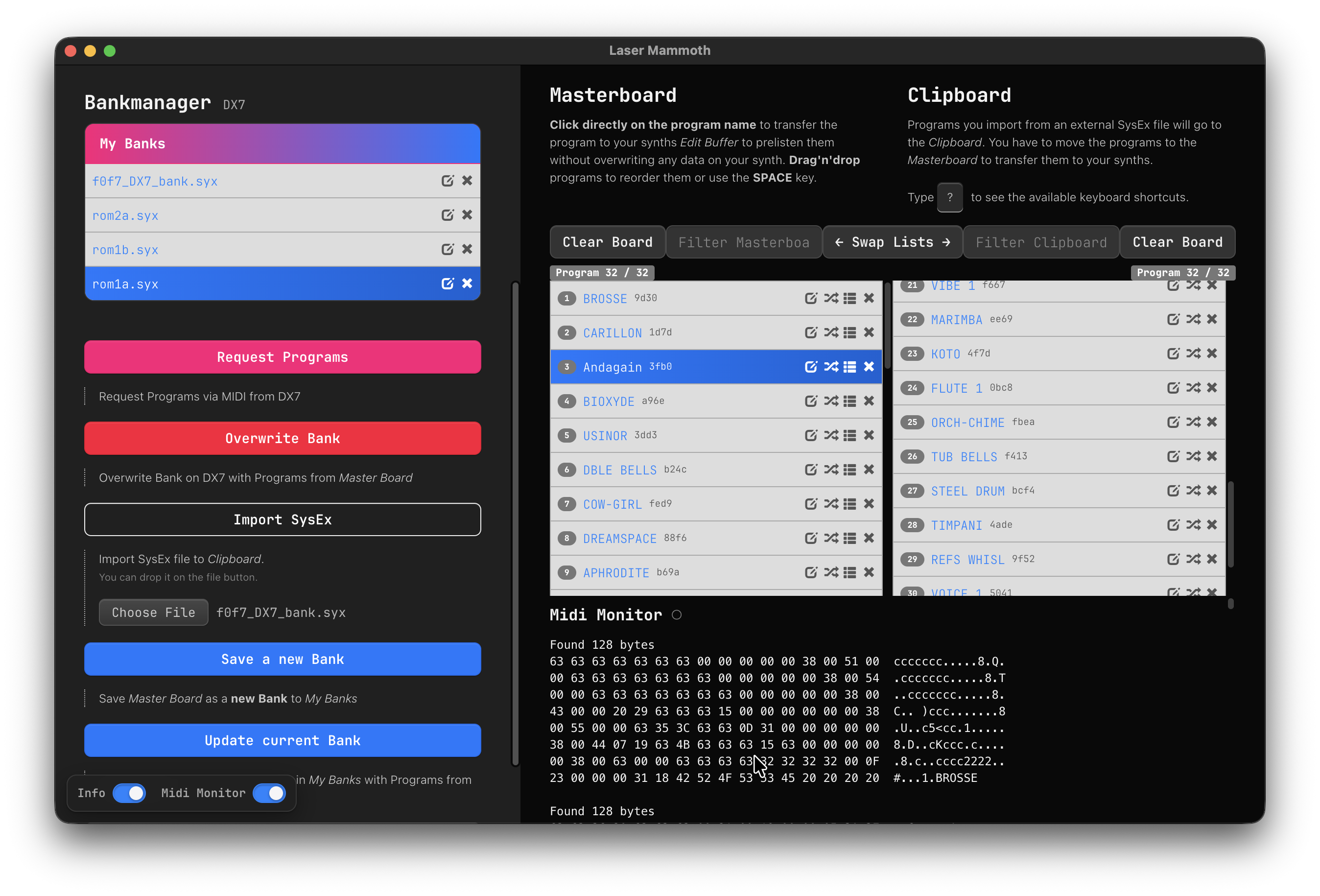
Switch on the MIDI Monitor to keep an eye on incoming data. Useful when setting up your gear or troubleshooting a SysEx transfer.
You don't need an app account to use the desktop app. Your library is stored locally on your Mac. You can organize sounds from files without an internet connection; exchanging sounds with your synthesizer requires a MIDI connection.
Connect your instrument using a SysEx-compatible MIDI interface or a suitable USB-MIDI connection. Then select the device profile and MIDI input and output in Laser Mammoth. Follow the device-specific instructions in the app.
Available features depend on the selected device profile. Some synthesizers support a direct request; others use a manual bank dump. Auditioning and renaming also depend on the device.
Importing and organizing sounds locally does not change the sounds stored on your instrument. “Overwrite Program” and “Overwrite Bank” can replace existing programs. Back up your sounds before overwriting them.
Get Laser Mammoth for macOS on the Mac App Store.
Laser Mammoth for macOS. Your sound library, right on your desktop.
Get Laser Mammoth on the Mac App Store Questions about the Mac app?